


Selling used electronics online can be a simple way to turn old devices into extra cash. Whether you have an old smartphone, laptop, tablet, gaming console, smartwatch, camera, headphones, or another electronic device, proper preparation can make a major difference in how quickly it sells and how much money you receive.
Many sellers make the mistake of taking a few quick photos, creating a short listing, and posting the item immediately. That approach may work occasionally, but it can also lead to lower offers, buyer complaints, returns, security issues, and unnecessary delays.
Before putting any device up for sale, it is important to check its condition, test its features, clean it properly, remove personal information, gather accessories, and prepare accurate details for the listing.
The goal is not to make an old device look brand new. The goal is to present it honestly, safely, and professionally so buyers know exactly what they are purchasing.
If you are planning to sell your device after preparing it, you can also read our complete guide on how to sell used electronics online for the best price. It covers pricing, platform selection, negotiation, shipping, and other important steps for getting the best possible return.
Why Preparing Used Electronics Before Selling Matters
Preparation can affect almost every part of an online sale.
A clean and well-tested device with clear photos and accurate information is more likely to attract serious buyers than a poorly presented listing.
Proper preparation can help you:
- Identify the exact model of your device
- Discover problems before the buyer does
- Protect your personal information
- Create more accurate listings
- Reduce buyer questions
- Avoid disputes and returns
- Present the device more professionally
- Include the right accessories
- Choose a realistic condition grade
Buyers cannot physically inspect an item when shopping online. They depend on your photos, description, and the information you provide.
If your listing is unclear, buyers may move on to another seller.
For example, imagine two listings for the same used laptop.
The first listing says:
Used laptop. Works great.
The second listing clearly explains:
- Exact model
- Processor
- RAM
- Storage
- Screen size
- Battery condition
- Included charger
- Cosmetic condition
- Any known issues
Most serious buyers will have more confidence in the second listing because they have the information they need to make a decision.
Preparation is what allows you to create that kind of listing.
Start by Identifying Exactly What You Are Selling
Before cleaning, photographing, or pricing your device, make sure you know exactly what it is.
This is especially important because many electronics look similar while having different specifications and resale values.
A smartphone may come in several storage capacities. A laptop model may have different processors, RAM configurations, storage options, and screen sizes.
Those differences can significantly affect the value.
Information to Find for Smartphones
If you are selling a smartphone, identify:
- Brand
- Exact model
- Storage capacity
- Color
- Carrier status
- Unlock status
- Battery condition
- Network compatibility
- Included accessories
For example, simply writing “used iPhone for sale” does not give buyers enough information.
A more useful description would identify the exact model, storage capacity, condition, and whether the phone is unlocked.
Information to Find for Laptops
For a laptop, check:
- Brand and model
- Processor
- RAM
- Storage capacity
- Storage type
- Screen size
- Graphics card
- Operating system
- Battery condition
- Charger availability
Do not assume that every laptop with the same model name has identical specifications.
Buyers often compare technical details carefully, especially when purchasing used computers.
Information to Find for Gaming Consoles
Before selling a gaming console, check:
- Exact console version
- Storage capacity
- Console generation
- Included controllers
- Included cables
- Included games
- Special edition status
- Any known issues
A complete gaming bundle may have a different value from a console sold by itself.
Check the Original Box and Device Settings
The original packaging can sometimes make it easier to identify your exact model and specifications.
You can also check:
- Device settings
- System information
- About pages
- Manufacturer labels
- Serial or model number information
Write this information down before resetting the device.
Once you erase the device, you may lose easy access to some details that would have helped you create the listing.
Check Whether the Device Is Eligible to Be Sold
Before spending time preparing the device, make sure there are no issues that could prevent the new owner from using it.
This is particularly important for phones, tablets, smartwatches, and other connected devices.
Check whether:
- The device is fully paid off
- It is connected to a carrier account
- It is unlocked or locked
- Activation locks are enabled
- The device can be transferred to a new owner
- The device has been reported lost or stolen
- There are any account restrictions
If there is a limitation, do not hide it.
For example, a carrier-locked phone can still be useful to some buyers, but they need to know that information before purchasing.
Being clear about the device status can prevent problems later.
Test Every Important Feature Before Selling
One of the most important parts of preparing used electronics is testing them properly.
Do not assume that a device works perfectly simply because it turns on.
A buyer may discover problems with the camera, microphone, charging port, battery, buttons, Wi-Fi, or another feature after receiving it.
It is much better to discover those problems yourself before creating the listing.
How to Test a Used Smartphone
Test the following:
- Touchscreen
- Display
- Cameras
- Flash
- Speakers
- Microphone
- Volume buttons
- Power button
- Charging port
- Wireless charging, if available
- Wi-Fi
- Bluetooth
- Cellular connection, where applicable
- Face or fingerprint authentication
- Vibration
- Headphone connection, if available
Also check the screen carefully for:
- Cracks
- Dead pixels
- Burn-in
- Deep scratches
- Touchscreen problems
Test the cameras in good lighting and make sure they focus correctly.
How to Test a Used Laptop
For laptops, check:
- Keyboard
- Trackpad
- Screen
- Webcam
- Microphone
- Speakers
- USB ports
- Charging port
- Wi-Fi
- Bluetooth
- Battery
- Storage
- Cooling fans
- Operating system
Type using every major key on the keyboard.
Test the trackpad by clicking, scrolling, and using gestures.
Connect a charger and confirm that the laptop charges correctly.
If the battery drains unusually quickly, include that information in the listing.
How to Test a Gaming Console
Before selling a console, test:
- Power button
- Startup
- HDMI output
- Audio
- Internet connection
- Controller connectivity
- USB ports
- Disc drive
- Storage
- Downloading or launching games
If you are selling controllers, test every button and analog stick.
A controller that appears to be in excellent condition may still have stick drift or connection problems.
Test Accessories Too
Do not forget to test:
- Chargers
- Charging cables
- Headphones
- Keyboards
- Mice
- Controllers
- Docks
- Adapters
If an accessory is included with the sale, the buyer will reasonably expect it to work.
Make a List of Any Problems You Find
As you test the device, write down every issue.
This makes it easier to create an honest description later.
Common problems include:
- Scratched screens
- Cracked displays
- Weak batteries
- Loose charging ports
- Camera issues
- Speaker problems
- Dead pixels
- Missing buttons
- Cosmetic dents
- Overheating
- Water damage
- Software issues
Not every problem makes a device worthless.
Many buyers are willing to purchase electronics with cosmetic damage or minor functional issues if the price reflects the condition.
The important thing is to disclose the problem clearly.
For example, instead of writing:
Good condition.
You could write:
Fully functional with normal signs of use. There is a small scratch on the lower-right corner of the screen, shown in the photos.
That description is more useful and creates realistic expectations.
Clean Your Used Electronics Carefully
A clean device can immediately look more attractive in photos.
Fingerprints, dust, dirt, and smudges can make electronics appear older than they actually are.
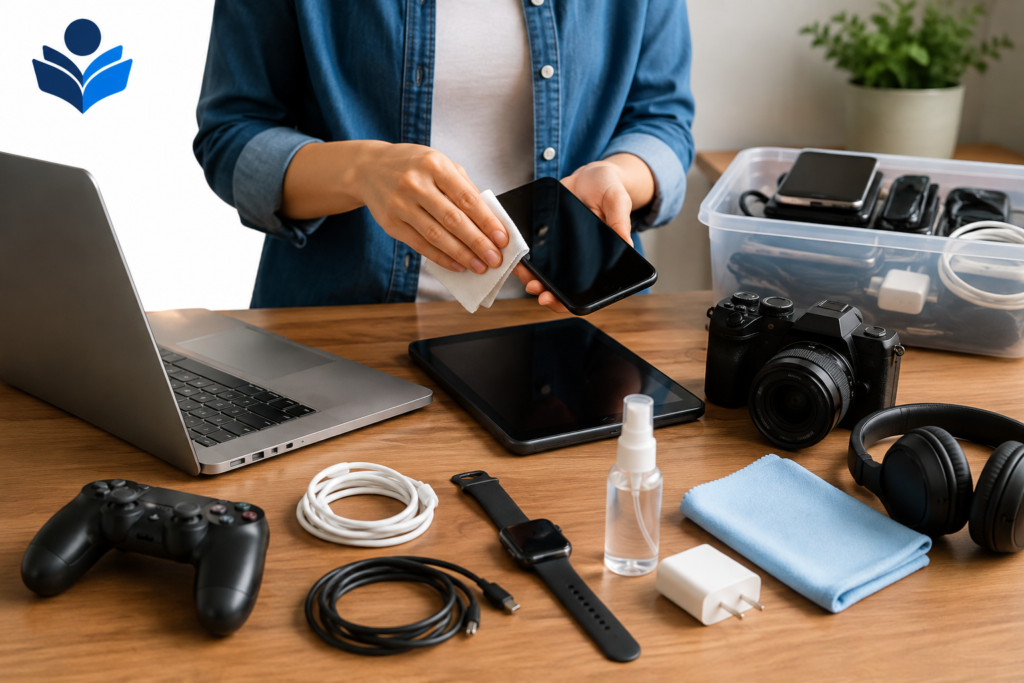
Before photographing your item, clean it carefully.
Basic Cleaning Checklist
You may need to:
- Wipe fingerprints from the screen
- Clean the exterior
- Remove dust from ports
- Clean cases and accessories
- Organize cables
- Remove unnecessary stickers
- Clean gaming controllers
- Wipe keyboards
Use cleaning methods that are appropriate for electronic devices.
Avoid soaking electronics or allowing moisture to enter ports, speakers, or other openings.
The goal is not to perform an aggressive restoration.
You simply want the item to look clean and ready for its next owner.
Do Not Hide Damage While Cleaning
Cleaning should improve presentation, not hide the real condition.
Do not use editing, lighting, or unusual camera angles to intentionally conceal:
- Cracks
- Dents
- Deep scratches
- Missing parts
- Other significant problems
Buyers should be able to see the actual condition.
Clear photos of flaws can help prevent arguments after the sale.
Remove Cases and Personal Accessories
Before taking photos, remove personal items that are not included with the sale.
These may include:
- Personal phone cases
- Stickers
- Decorative accessories
- Keychains
- Personal labels
- Storage devices containing your files
If a case or accessory is included, clean it before photographing it.
You should also make a clear decision about what is actually included in the sale.
For example:
Included:
- Smartphone
- Original charging cable
- Original box
- Protective case
Not included:
- Wall adapter
- Headphones
- SIM card
Clear information reduces confusion.
Back Up Your Personal Data
Before erasing a device, make sure you have saved anything important.
Used electronics can contain years of personal information.
Depending on the device, you may have:
- Photos
- Videos
- Documents
- Contacts
- Messages
- Passwords
- Notes
- Downloaded files
- Application data
- Saved payment information
Take time to review what you want to keep.
Back up important files using the appropriate method for your device.
Do not rush directly into a factory reset without checking whether your information has been saved.
Once the device is properly erased, recovering certain information may be difficult or impossible.
Sign Out of Personal Accounts
Backing up your data is not enough.
You should also sign out of your personal accounts before transferring ownership.
Depending on the device, this may include:
- Email accounts
- Cloud storage
- App store accounts
- Manufacturer accounts
- Gaming accounts
- Streaming services
- Browser accounts
You should also remove saved payment methods.
This step is important for both privacy and usability.
A buyer should not receive a device that is still connected to your personal accounts.
Remove Activation Locks and Ownership Locks
Modern devices often include security features designed to prevent unauthorized use.
These protections are useful when the device belongs to you, but they can create major problems when selling it.
Before listing the device, make sure any ownership or activation lock has been properly removed.
After performing the reset, check the device again.
Ideally, it should open to the normal setup process without asking the next owner to enter your personal account credentials.
Do not wait until after the sale to discover that the device is still locked.
Perform a Proper Factory Reset
Once you have:
- Backed up your important information
- Signed out of personal accounts
- Removed activation or ownership locks
you can perform the appropriate factory reset or erase process.
A proper reset is much safer than manually deleting a few files.
The exact process depends on the device.
Smartphones and Tablets
After removing your accounts, use the device’s official reset option.
When the process is complete, check that the device opens to the initial setup screen.
Do not complete the setup again using your personal information.
The new owner should be able to begin the setup process themselves.
Laptops
For laptops, use the appropriate erase or reset process for the operating system.
Before resetting, confirm that your important files have been backed up.
You should also sign out of applications and services that may contain saved personal information.
Gaming Consoles
Gaming consoles can store:
- User accounts
- Saved payment methods
- Messages
- Game information
- Login credentials
Remove your account and use the appropriate reset process before selling.
Do not simply delete a game or remove a few files.
Check Battery Condition
Battery condition can be an important selling factor.
This is especially true for:
- Smartphones
- Tablets
- Laptops
- Smartwatches
- Wireless headphones
If the device provides battery health information, record it before creating the listing.
If the battery does not hold a charge well, be honest.
A weak battery may lower the value, but hiding the problem can lead to complaints.
You can describe the issue clearly.
For example:
The device works normally, but the battery has reduced capacity due to regular use.
Avoid making unsupported claims about battery life.
If you know the battery has a problem, simply explain what you have observed.
Decide How to Grade the Condition
Condition descriptions can help buyers quickly understand what to expect.
A simple system includes:
Like New or Excellent
The device has little visible wear and works properly.
Good
The device works correctly and has minor signs of regular use.
Fair
The device has noticeable cosmetic wear or minor issues but remains usable.
Poor or Damaged
The device has significant cosmetic or functional problems.
Choose the description that honestly matches the item.
Do not call a device “like new” if it has:
- A cracked screen
- Deep scratches
- Major dents
- Battery problems
- Non-working features
Honest condition grading can protect you from disputes and help you attract the right buyer.
Gather All Accessories Before Taking Photos
Before creating the listing, collect everything that may be included.
This can include:
- Chargers
- Charging cables
- Original boxes
- Manuals
- Extra controllers
- Docks
- Cases
- Keyboards
- Mice
- Adapters
- Headsets
Organize the accessories neatly.
Then decide whether selling everything together makes sense.
A complete package may be more attractive to buyers because they can start using the device immediately.
For example, a gaming console with the original cables and controller may be easier to sell than a console with missing accessories.
If you are selling multiple types of secondhand belongings, you can also explore Used Items Guide for helpful guides covering different categories of used items.
Decide Whether to Bundle or Sell Separately
Bundling can be useful, but it is not always the most profitable choice.
For example, you may have:
- A gaming console
- Three controllers
- Ten games
- A charging dock
You could sell everything together as one bundle.
Or you could sell certain items separately.
A bundle may:
- Sell faster
- Be more convenient
- Attract buyers looking for a complete setup
Separate sales may:
- Take longer
- Require more listings
- Potentially produce more total revenue
Consider the value of each item before deciding.
The same approach can apply to phones, laptops, cameras, and other electronics.
Take Clear and Honest Photos
Photos are one of the most important parts of an online electronics listing.
Buyers want to see the actual item they will receive.
You do not need professional photography equipment.
A modern smartphone camera can usually produce good results with proper lighting.
Photos You Should Take
Try to photograph:
- Front
- Back
- Left side
- Right side
- Top
- Bottom
- Corners
- Screen
- Ports
- Included accessories
- Original box
- Any visible damage
For a laptop, photograph:
- Screen
- Keyboard
- Trackpad
- Ports
- Exterior
- Charger
For a gaming console, photograph:
- Console
- Controllers
- Cables
- Games
- Accessories
Photograph Damage Clearly
If the item has a flaw, take a close-up photo.
Examples include:
- Screen scratches
- Cracks
- Dents
- Missing pieces
- Cosmetic wear
This may seem like it will hurt your sale, but hiding the issue can create bigger problems.
A serious buyer appreciates knowing the real condition before purchasing.
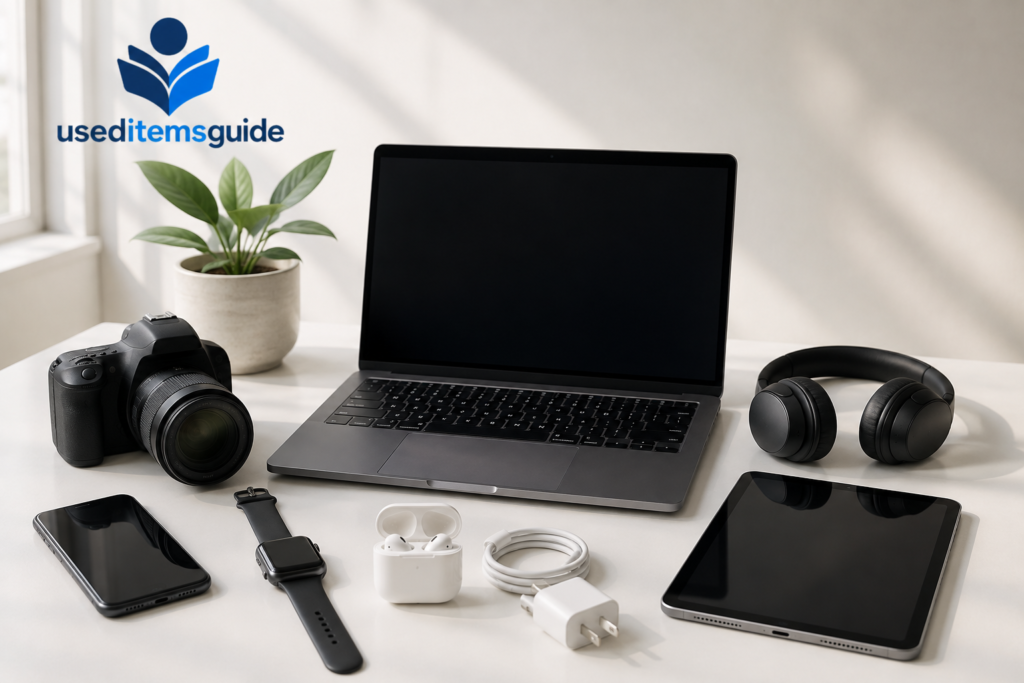
Use Good Lighting and a Clean Background
You do not need an expensive studio.
A clean table or simple neutral background can work well.
Natural light is often helpful, but avoid harsh glare.
For screens, adjust the angle to reduce reflections.
Before taking photos:
- Remove unnecessary clutter
- Clean the surface
- Organize accessories
- Remove personal information from the screen
Photograph the Device While It Is Working
When appropriate, take a photo showing that the device powers on.
For example, you might photograph:
- A smartphone at the setup screen
- A laptop showing basic system information
- A gaming console running normally
However, be careful not to expose:
- Personal emails
- Passwords
- Account information
- Private documents
- Payment information
- Home addresses
The purpose is to show functionality, not reveal personal data.
Record Important Details Before Resetting
Before performing a final reset, collect the information you will need for your listing.
This may include:
- Model number
- Storage capacity
- Processor
- RAM
- Battery information
- Carrier status
- Unlock status
- Included accessories
- Cosmetic flaws
Create a simple note for yourself.
For example:
Device: [Exact model]
Storage: [Capacity]
Condition: [Good/Fair/etc.]
Battery: [Relevant details]
Included: [Accessories]
Known issues: [List]
Having this information ready makes the listing process much easier.
Create a Simple Preparation Checklist
Before listing your used electronics, go through a complete checklist.
Device Identification
- Confirm the exact model
- Check important specifications
- Record storage capacity
- Record battery information if available
- Check carrier or unlock status
Function Testing
- Test the screen
- Test buttons
- Test cameras
- Test speakers
- Test microphones
- Test charging
- Test Wi-Fi and Bluetooth
- Test relevant ports
Data Protection
- Back up important information
- Sign out of personal accounts
- Remove saved payment information
- Remove activation locks
- Perform the appropriate reset
Physical Preparation
- Clean the device
- Clean accessories
- Remove unnecessary stickers
- Organize included items
- Inspect for damage
Listing Preparation
- Take clear photos
- Photograph flaws
- Write down specifications
- List included accessories
- Describe the condition honestly
This process may take some time, but it can make the actual sale much easier.
How to Prepare Used Smartphones for Sale
Smartphones contain some of the most personal information of any electronic device.
Before selling one, pay special attention to privacy and account security.
Smartphone Preparation Steps
- Back up photos and files.
- Sign out of personal accounts.
- Remove activation or ownership locks.
- Check whether the phone is unlocked.
- Record storage and battery information.
- Test cameras, speakers, buttons, Wi-Fi, Bluetooth, and charging.
- Clean the screen and exterior.
- Photograph the device and any flaws.
- Perform the appropriate factory reset.
- Confirm that it opens to the setup screen.
Do not include your SIM card unless you have a specific reason to do so.
In most cases, personal SIM cards should be removed before the sale.
How to Prepare Used Laptops for Sale
Laptops require additional attention because they may contain:
- Work documents
- Saved passwords
- Browser data
- Financial information
- Photos
- Personal files
Before selling, back up everything you want to keep.
Then sign out of important accounts and erase the device using the appropriate process.
Laptop Preparation Checklist
Check:
- Processor
- RAM
- Storage
- Screen size
- Battery condition
- Keyboard
- Trackpad
- Webcam
- USB ports
- Wi-Fi
- Bluetooth
- Charger
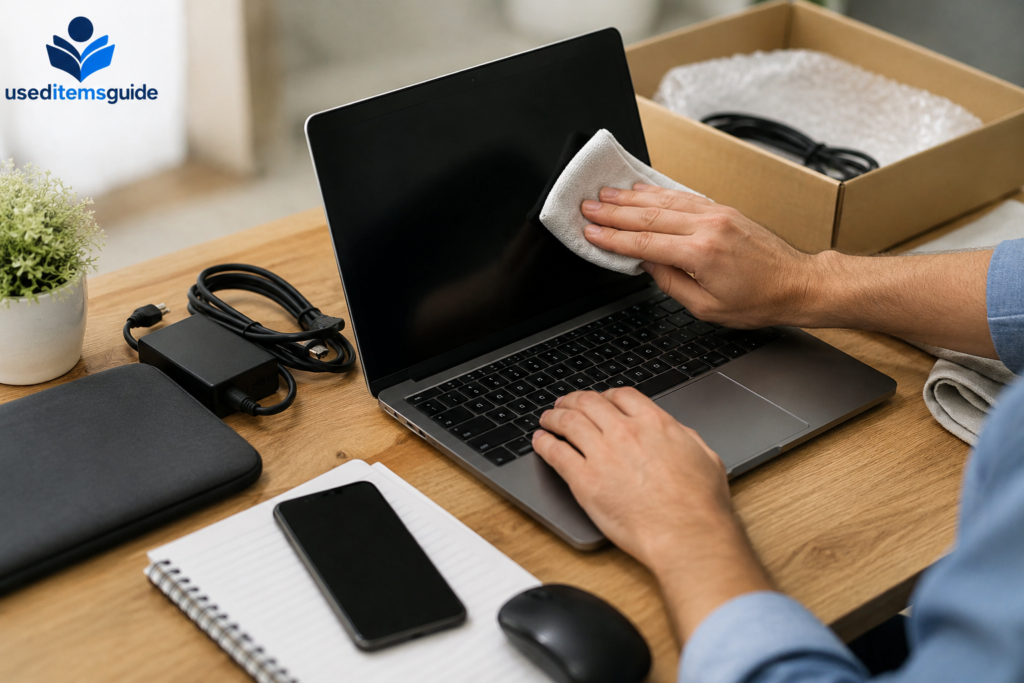
Take photos of the exterior and keyboard.
For more advice on selling secondhand items from other categories, you can also browse our used furniture guides, especially if you are decluttering multiple items from your home.
How to Prepare Used Gaming Consoles for Sale
Gaming consoles can contain personal accounts and payment information.
Before selling, remove:
- User profiles
- Saved payment methods
- Login credentials
- Personal messages
Then perform the appropriate reset.
Test the console before packaging it.
Check:
- Power
- HDMI output
- Controllers
- Audio
- Internet connection
- Storage
- Disc drive, if applicable
Gather every cable and accessory that you plan to include.
Photograph the entire bundle together and also take individual photos where useful.
How to Prepare Broken or Damaged Electronics
A broken device may still be worth selling.
Some buyers purchase damaged electronics for:
- Repair projects
- Replacement parts
- Refurbishment
- Components
Preparation is still important.
First, identify exactly what is wrong.
For example:
- Device does not power on
- Screen is cracked
- Battery does not hold a charge
- Camera does not work
- Charging port is damaged
- Device has water damage
Do not guess about problems you have not tested.
You can say:
The device does not power on. No additional testing was completed.
That is more accurate than claiming that the device is completely non-functional if you have not tested every component.
Take clear photos of the damage.
If the device is locked or has an account issue, disclose that information as well.
Do Not Throw Away the Original Box Too Quickly
Original packaging can sometimes add value or improve buyer confidence.
The box may also contain useful information, including:
- Exact model
- Storage capacity
- Product details
If you still have the original box, check its condition.
A damaged box may not add much value, but it can still help with packaging and identification.
Do not promise that the original box is included unless it is actually part of the sale.
Prepare Accurate Listing Information
After the device has been tested and cleaned, you should have enough information to create a strong listing.
Your listing should answer common questions before buyers need to ask.
Include:
- Exact model
- Important specifications
- Condition
- Functionality
- Known issues
- Included accessories
- Relevant lock or carrier information
- Shipping or pickup details
Avoid vague descriptions such as:
Great device.
Instead, give useful information.
For example:
Used laptop in good working condition. Includes the original charger. The keyboard, trackpad, Wi-Fi, USB ports, webcam, and speakers were tested before listing. There are minor cosmetic scratches on the exterior, shown in the photos.
This helps buyers understand what they are getting.
Keep Your Photos and Testing Records
Before shipping the device, keep a record of its condition.
Save:
- Original listing photos
- Photos of any serial or model information, when appropriate
- Testing notes
- Screenshots of the listing
- Shipping information
For expensive electronics, documentation can be useful if a dispute occurs.
You may also want to photograph the device before packaging and take photos showing how it was protected inside the box.
Do not publicly share sensitive identification information unless necessary.
Common Preparation Mistakes to Avoid
Even experienced sellers can make mistakes when preparing electronics.
Forgetting to Back Up Important Files
Always check your files before resetting the device.
Leaving Accounts Connected
A factory reset may not solve every account-related problem if ownership or activation locks are still connected.
Hiding Damage
Clear disclosure is better than creating false expectations.
Taking Photos Before Cleaning
Fingerprints and dust can make a perfectly functional device look neglected.
Forgetting to Test Accessories
If the charger or controller is included, make sure it works.
Losing Important Specifications
Record the model, storage, battery information, and other details before resetting.
Forgetting Included Items
Gather everything before taking photos and writing the listing.
Using a Vague Condition Description
Buyers need to know what “good condition” actually means.
Explain any important wear or problems.
What to Do After Your Electronics Are Fully Prepared
Once your device is:
- Clean
- Tested
- Reset
- Unlocked where applicable
- Photographed
- Documented
you are ready to move to the next stage: choosing where and how to sell it.
Different selling platforms work better for different devices.
For example, a lightweight smartphone may be easy to sell through an online marketplace, while a large monitor or desktop computer may be more practical to sell locally.
If you are deciding between marketplaces, local selling, trade-in programs, and other options, read our guide on where to sell old electronics.
It can help you compare your options and choose a selling method based on your device, its condition, and how quickly you want to complete the sale.
Frequently Asked Questions
Should I factory reset my electronics before selling them?
Yes. After backing up important information and signing out of your accounts, use the appropriate factory reset or erase process for the device.
Should I clean used electronics before selling them?
Yes. Cleaning fingerprints, dust, and dirt can improve presentation and help your photos look better. However, do not attempt to hide genuine damage.
What should I test before selling a used phone?
Test the screen, cameras, speakers, microphone, buttons, charging, Wi-Fi, Bluetooth, and other important features.
Should I photograph scratches and damage?
Yes. Clear photos of flaws help buyers understand the condition and can reduce disputes later.
Do I need to include the original charger?
Not always, but including the charger can make your listing more attractive. Clearly state whether a charger is included.
Can I sell electronics with problems?
Yes. Broken or damaged electronics may still have value for repair, refurbishment, or parts. Describe the problem honestly.
Should I remove my SIM card before selling a phone?
In most cases, yes. Remove personal SIM cards and make sure the device is properly reset before transferring it to a new owner.
What information should I record before resetting a device?
Record the exact model, specifications, storage capacity, battery information, condition, included accessories, and known problems.
Final Thoughts
Knowing how to prepare used electronics before selling them online can help you avoid many common problems during the selling process.
Before listing any device, take time to identify the exact model and specifications. Test the important features, check the physical condition, and write down any problems you discover.
Protect your privacy by backing up important files, signing out of personal accounts, removing ownership locks, and performing the appropriate factory reset.
Then clean the device, gather the accessories, and take clear photos that show both the strengths and the flaws.
Good preparation does not guarantee an instant sale, but it gives you a much stronger foundation for creating an accurate listing and building buyer confidence.
Once your device is ready, the next step is to decide how to price it, where to list it, and how to complete the transaction safely. For a complete walkthrough, visit our guide on how to sell used electronics online for the best price.
And if you are still comparing different platforms and selling options, check out where to sell old electronics to find the approach that best fits your device and selling goals.
