






Google My Activity helps users review search history, manage privacy settings, and delete saved Google account data.
Google My Activity is where you can view and manage activity saved to your Google Account, such as searches, visited websites, and YouTube activity.
You can use it to check your recent activity, find older history, control what Google saves, or delete activity you no longer need. Here is how to access and manage your Google activity history.
How to Access Your Google My Activity History?
Once you open Google My Activity and sign in, your available activity appears on the page. Follow these steps:
- Go to myactivity.google.com and sign in to the Google Account you want to check.
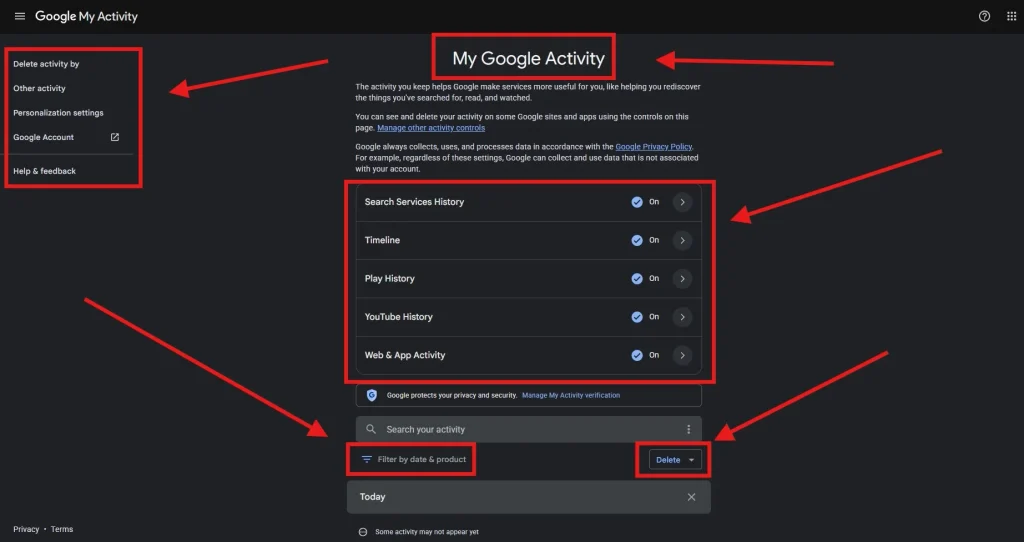
- Scroll through your activity to see recent searches and other activity. You can also use the Filter option to check out only today’s history.
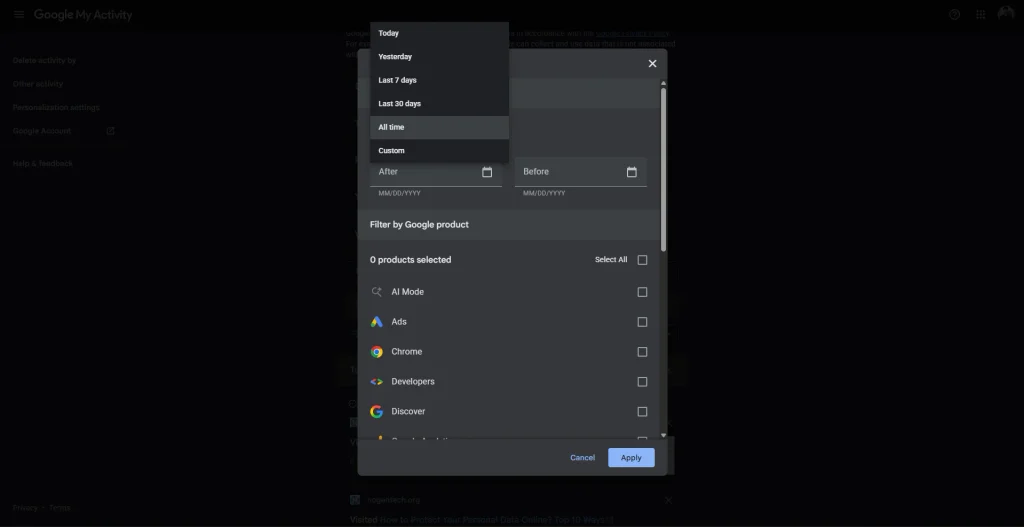
- Use Search your activity to find a specific search or activity.
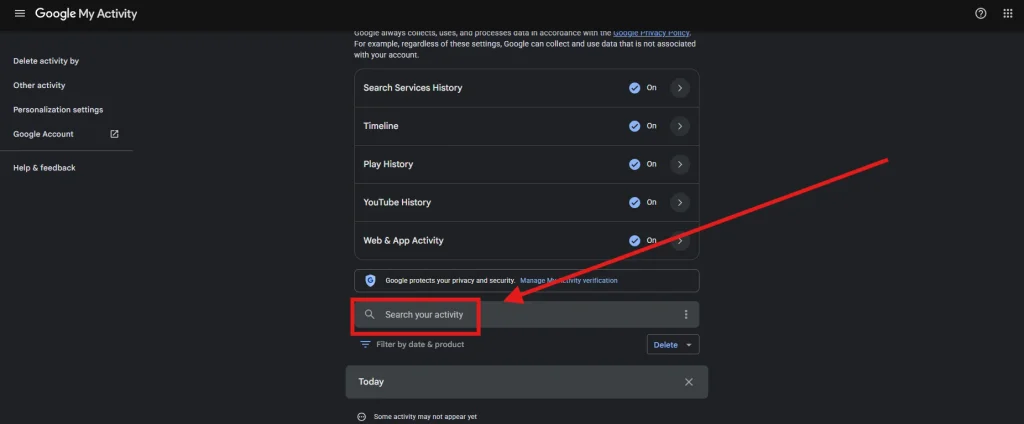
- Again, you can also use filters to narrow your history by date or Google product.
- Open an activity item to see its available details.
That’s it. Once you open My Activity, you can directly browse your saved Google activity.
What Does Google My Activity Show?
What you see depends on your Google Account settings and the services you use. Google My Activity may show:
- Web & App Activity, including supported Google searches and activity.
- YouTube History, including watched videos and searches when enabled.
- Activity from supported Google services and apps connected to your account.
- Date, time, device, or other available details associated with some activity.
Location-related information may be managed separately through Google Maps Timeline. Google My Activity does not necessarily show everything you do online. Activity only appears when Google saves it according to your account and history settings.
How to Manage Your Google My Activity?
Google also lets you control what activity is saved and remove activity you no longer want. Go to your Google Account → Data & privacy to find the available activity and history controls.
From there, you can:
- Turn supported activity saving on or off.
- Delete a specific activity item.
- Delete activity from a specific date or time period.
- Delete all saved activity.
- Set up auto-delete for supported activity.
To delete activity, open Google My Activity, select Delete, and choose the time period you want to remove. For automatic deletion, open the relevant activity control and select Auto-delete.
Remember, turning activity saving off and deleting existing activity are different things. Turning it off controls future saving, while deleting removes activity that has already been saved.
We’ve also included a quick visual guide showing how to manage your Google Account history in Google My Activity.
Why Is My Google Activity Not Showing?
Your Google activity may not appear if:
- You are signed in to the wrong Google Account.
- You were not signed in when the activity happened.
- The relevant activity setting was turned off.
- The activity was already deleted.
- Auto-delete removed older activity.
- That type of activity is stored somewhere else.
First, check that you are using the correct Google Account and that the relevant history setting is enabled.
How to Delete Google My Activity History
You can delete individual activities, remove history from a specific period, or delete all activity available through Google My Activity.
Follow these steps:
- Visit Google My Activity and sign in to your Google Account.
- Find the activity you want to remove.
- Select the available delete option for an individual item, or open the Delete menu to choose a time range.
- Select the relevant date range, such as the last hour, last day, all time, or a custom range when available.
- Review your selection and confirm the deletion.
The available options may vary depending on the activity type and Google Account settings.
Before deleting your history, make sure you no longer need the information. Permanently deleted activity generally cannot be recovered through Google My Activity.
How to Turn Off Google My Activity
If you do not want Google to save certain types of future activity to your account, you can manage your activity controls.
- Open Google Account settings.
- Select Data & privacy.
- Find the History settings section.
- Open the relevant control, such as Web & App Activity or YouTube History.
- Turn off the setting if you no longer want that type of activity saved.
You may see additional options for managing the information associated with a particular Google service.
Keep in mind that turning off an activity control does not automatically delete activity that was already saved. You must delete existing activity separately if you want to remove it. Some information may also be retained for limited purposes according to Google’s policies.
How to Check Google Search History by Date
If you want to find an older Google search, open Google My Activity and sign in to your account. Use the search bar to find a specific activity or select the available date and product filters to narrow your results.
You can review activity from a particular day or search for activity associated with a supported Google service. The results depend on your account settings and the activity Google has saved.
How to Check Google My Activity on Your Phone
You can check your Google activity on an Android phone or iPhone without installing a separate app.
- Open a web browser on your phone.
- Visit myactivity.google.com.
- Sign in to your Google Account if prompted.
- Review your recent activity or use the search and filter options.
- Open your Google Account’s Data & privacy settings to manage activity controls.
Make sure you select the correct Google Account if you use multiple accounts on your phone.
Can Other People See Your Google My Activity?
Google My Activity is associated with your Google Account and is not automatically a public record. However, someone who gains access to your unlocked device or Google Account may be able to view some of your saved activity.
To improve your privacy, use a strong password, enable two-step verification, secure your devices, and sign out of shared devices when you finish using them.
Also, remember that deleting activity from Google My Activity does not necessarily erase every record held elsewhere, such as browser history or activity stored by other websites and services.
How to Set Up Auto-Delete for Google Activity
Google provides auto-delete options for certain types of saved activity. These settings let you choose when eligible activity should be automatically removed from your account.
To check whether auto-delete is available:
- Open Google My Activity.
- Select the relevant activity control in your Google Account settings.
- Look for the Auto-delete option.
- Choose an available time period, if offered.
- Review and confirm your selection.
Auto-delete availability and time periods can vary by activity type. Check each relevant history control separately if you want to manage multiple types of saved activity.
Google My Activity vs Chrome History
Google My Activity and Chrome History are different.
Google My Activity shows supported activity saved to your Google Account, while Chrome History primarily shows websites you have visited in the Chrome browser.
You can also clear cookies from Chrome separately when you want to remove other stored browser data. Some information can overlap depending on your Google and Chrome settings.
FAQs About Google My Activity
Does Google My Activity show everything?
It shows activity connected to enabled Google services and settings, but not every action on your device.
Can I Recover Deleted Google Activity?
Generally, no. Once an activity is permanently deleted from your Google Account, it cannot normally be recovered.
Can I recover deleted Google activity?
Generally, permanently deleted activity cannot be recovered through Google My Activity. Before deleting anything, check that you no longer need the saved information.
Does Google My Activity show incognito browsing?
Incognito browsing activity is not normally saved to your Google Account’s My Activity history in the same way as activity performed while signed in under normal browsing settings. However, incognito mode does not make you invisible to websites, your network administrator, or your internet service provider.
How do I stop Google from saving my search history?
Open your Google Account’s Data & privacy settings and review Web & App Activity. You can turn off the relevant control, but this does not delete history already saved to your account.
Does deleting Google My Activity delete Chrome History?
No. Google My Activity and Chrome History are separate. You may need to clear browsing history in Chrome separately. The exact relationship between saved records depends on your account and browser settings.
Can I check Google My Activity without signing in?
You generally need to sign in to the Google Account associated with the activity to view its saved history. If you use multiple accounts, select the correct one before checking your records.
